
I turned the edges of my MacBook trackpad into volume and brightness sliders — meet RimControl
A MacBook trackpad is huge. It’s a big slab of glass, and most of the time I only use the middle of it. The edges just sit there, doing nothing.
So I gave them a job. It’s called RimControl, it’s free, it’s open source, and it lives in your Mac’s menu bar. Slide along an edge to change the volume or brightness. Here’s why it exists and what it does.
The itch
Changing the volume on a Mac isn’t hard. It’s just slightly annoying, in a way that adds up. You reach for the top row, tap, tap, tap, overshoot, tap back. Then you do the same dance for brightness, on different keys.
Meanwhile, your finger is already on the trackpad. And a level is a slider-shaped thing. You want to drag it, not poke at it.
So I wanted something simple:
- Change volume and brightness without moving my hand
- Leave normal trackpad use alone
- No account, no subscription, nothing phoning home
That’s RimControl.
What RimControl actually does
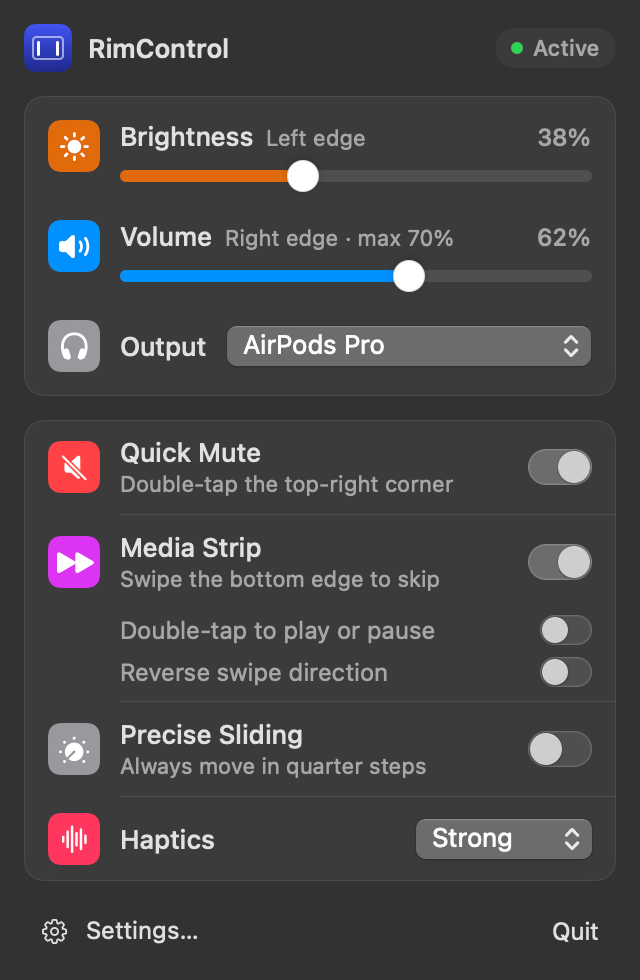
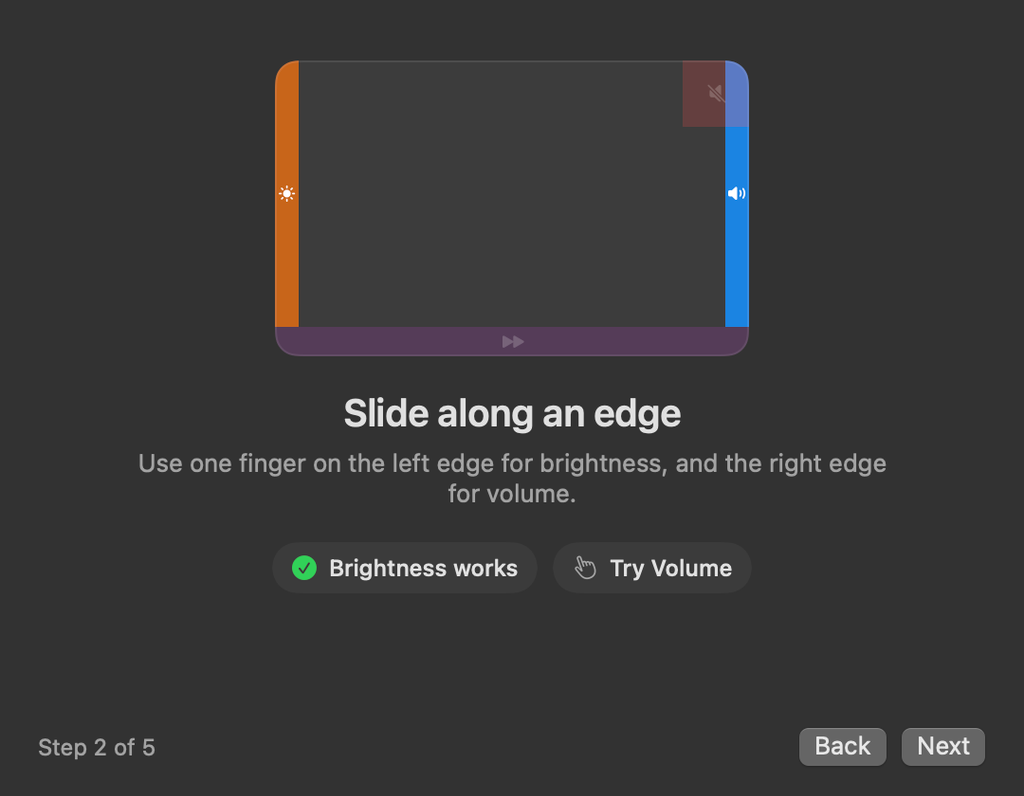
It turns the edges into sliders. Slide one finger along the right edge for volume, or the left edge for brightness. Want them the other way round? Swap Sides exchanges the two.
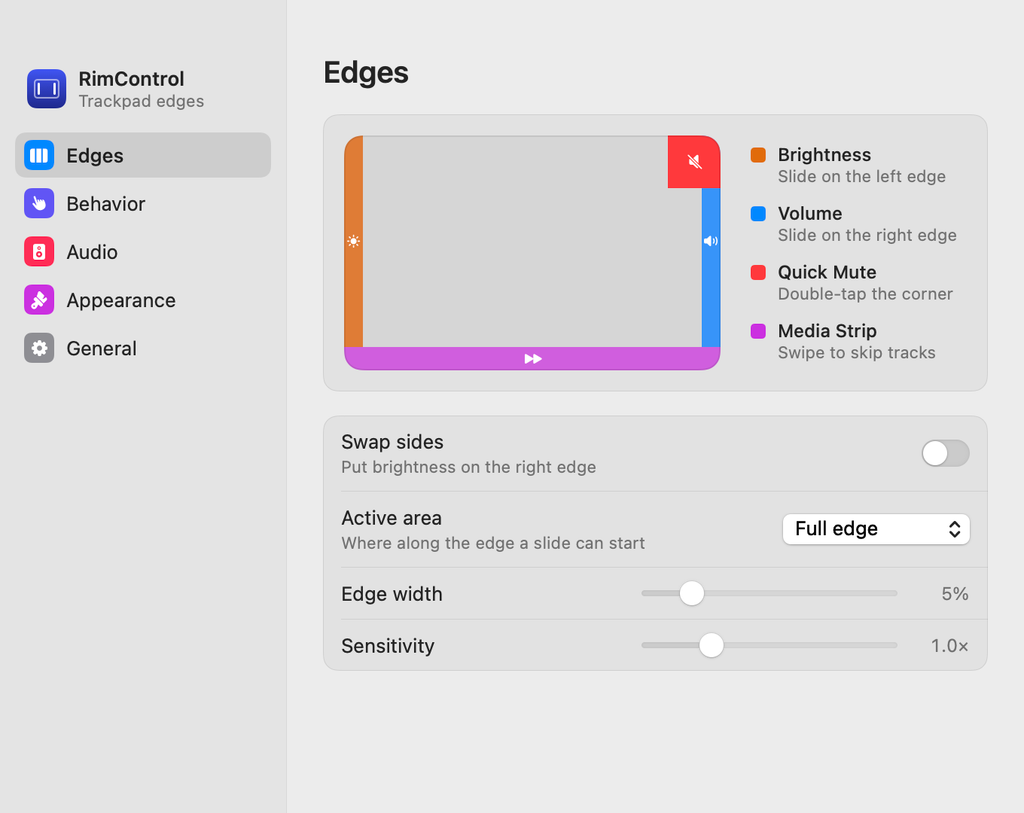
It handles your music too. Double-tap the top-right corner to mute. Swipe the bottom edge to skip tracks, and flip the direction if it feels backwards. There’s an optional double-tap on the bottom edge for play and pause, which is off by default. Haptics come in Off, Subtle, Standard or Strong, with a stronger buzz for mute, so you can feel what happened without looking.
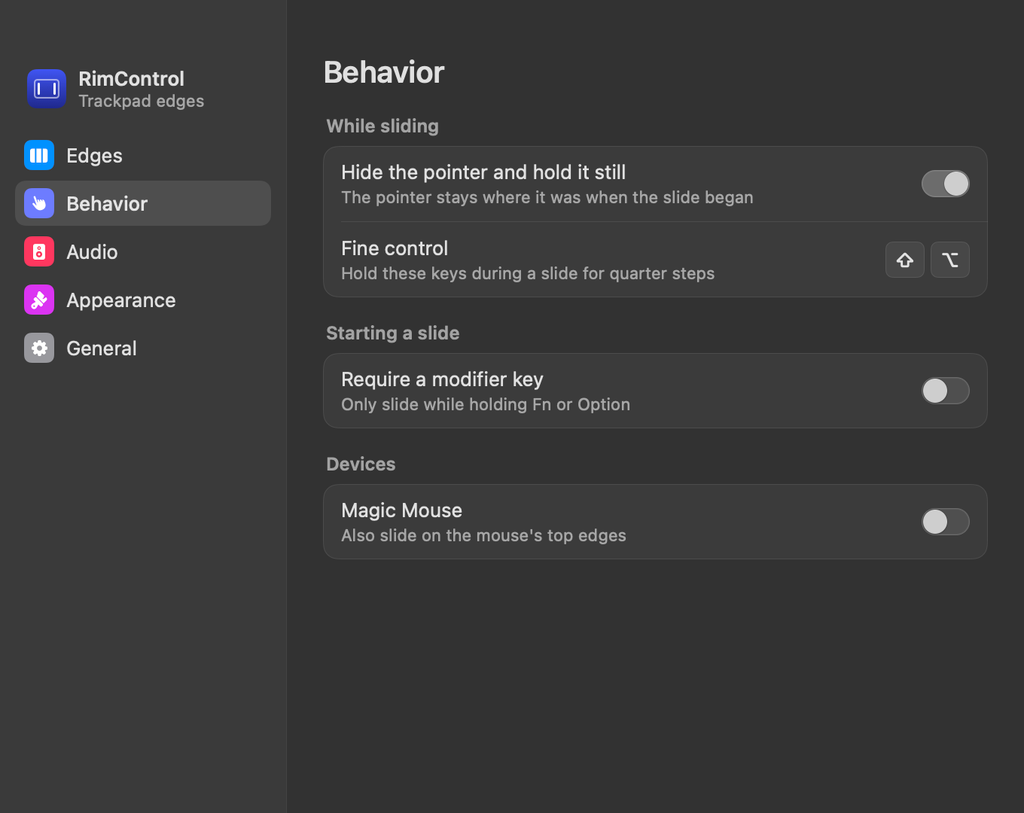
It stays out of your way. The obvious worry with anything living on your trackpad is setting it off by accident. So gestures pause briefly after a key press. You can limit where a slide starts to the bottom ¾, half or quarter of an edge, or only allow slides while holding Fn or Option. Edge width and sensitivity are adjustable too.
During a slide, the pointer hides and stays exactly where it was. Hold Shift-Option for quarter steps when you want a precise level, or turn on Precise Sliding to get them all the time.
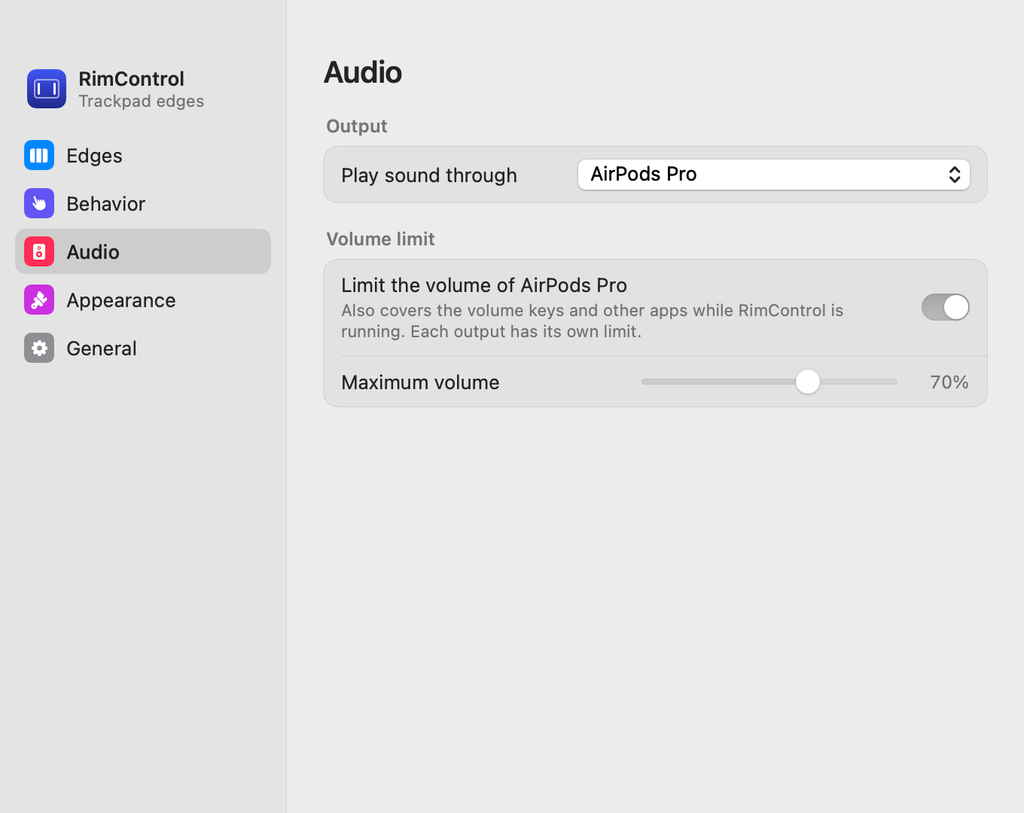
It looks after your ears. Each audio output gets its own maximum. Cap your AirPods at 70% and that limit also covers the volume keys and other apps, for as long as RimControl is running. You can switch outputs from the menu as well.
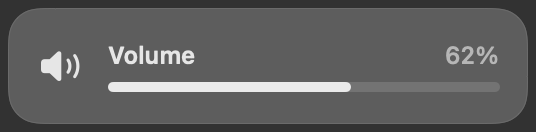
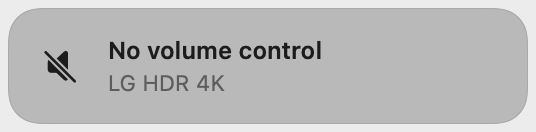
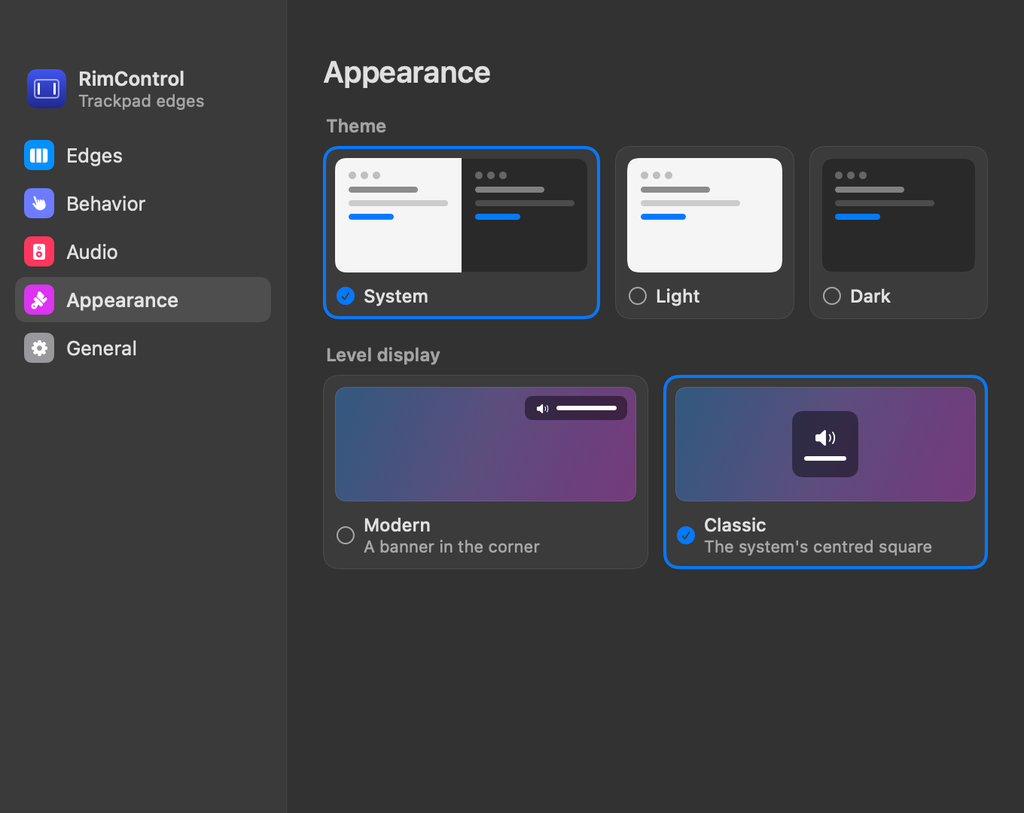
It tells you when it can’t do something. Some outputs can’t be controlled, like many external displays. Instead of silently doing nothing, RimControl shows a banner that says so, and your pointer stays free. The level display is your pick: a modern banner in the corner, or the classic centred square.
It teaches you the gestures. The first launch opens a short interactive guide that has you try each gesture for real. You can replay it from Settings whenever you like.
The rest is small stuff: optional slides on a Magic Mouse’s top edges, Light or Dark themes, open at login, and reconnecting after your Mac wakes up.
The privacy bit, because it matters
An app that reads your trackpad and watches for key presses should have to explain itself. So here’s the explanation.
There is no backend. There is no telemetry. There is no account. RimControl has no networking code at all, and it doesn’t even check for updates. Your settings stay on your Mac.
It does ask for Accessibility access, which it needs for the media keys and for holding the pointer still during a slide. The typing guard only notes that a key was pressed, so it can pause gestures for a moment. It never looks at which key.
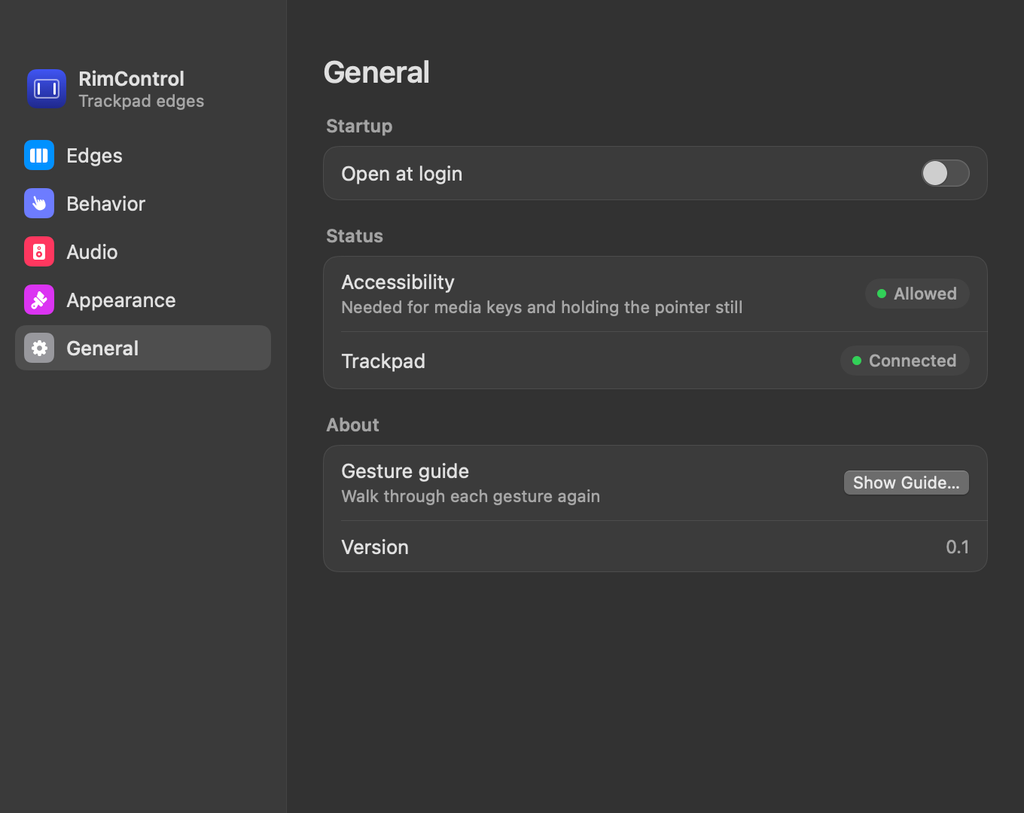
You don’t have to take my word for any of this. The code is on GitHub, and it’s short enough to read.
How it’s built (for the curious)
RimControl is about 3,800 lines of Swift with no third-party packages. The gesture logic lives in its own small module with no system dependencies, so it can be checked without any hardware: swift run RimCoreChecks.
The interesting part is that macOS has no public API for raw trackpad touches. RimControl uses a few private frameworks to get them, and to set brightness and show the system’s level display. Private APIs can change in any macOS update, so each one is loaded and checked at runtime. If a symbol goes missing, that feature switches off and the app keeps running.
The catch: private APIs rule out the Mac App Store. That’s why you won’t find it there.
Getting it
For now, you build it yourself. There’s no download yet, but it’s only four commands. You need macOS 13 or later, plus the Xcode Command Line Tools with Swift 5.9 or later.
git clone https://github.com/hacess/rimcontrol.git
cd rimcontrol
./scripts/build-app.sh
open build/RimControl.app
Grant Accessibility access when asked. If the toggle already shows as on but nothing works, remove the entry in System Settings and add it again.
A few honest limitations:
- There are no automatic updates, and no universal binary. The build matches your Mac’s architecture.
- On macOS 26, the Modern level display is RimControl’s own banner, not the system’s glass HUD.
- On macOS 26, brightness changes without the system’s smooth easing.
The code is on GitHub.
Why bother?
Honestly? Because that trackpad is too big to waste, and because dragging a slider just feels better than tapping a key nine times. I also think there’s still room for small tools that do one modest thing and keep their hands out of your data.
If that sounds good to you, go try it. And if a gesture feels wrong on your Mac, tell me. I’d like to know.
RimControl is free and open source (MIT). Built by Chandan — codedbrainy.com